Weak PC? Start with Performance mode
On a low-end PC or laptop the biggest jump comes from one setting: Rendering Mode → Performance - Lower Graphical Fidelity. It switches Fortnite to a much lighter renderer made for weaker hardware.
- Open Settings → Video → Graphics.
- Set Rendering Mode to Performance - Lower Graphical Fidelity.
- Restart Fortnite when it asks.
Performance mode looks simpler, and Fortnite downloads some extra files the first time. If your PC is mid-range or better, stay on DirectX 11 or 12 and use the settings below instead.
VSync and the frame rate limit
- Turn VSync off. It adds input delay and can drop you to half your refresh rate when the game dips.
- Set Frame Rate Limit to your monitor's refresh rate (60, 144, 165, 240...), or Unlimited on a weaker PC that never reaches it.
Not sure what your monitor runs at? Windows Settings → System → Display → Advanced display shows the refresh rate.
Best Fortnite settings for your PC
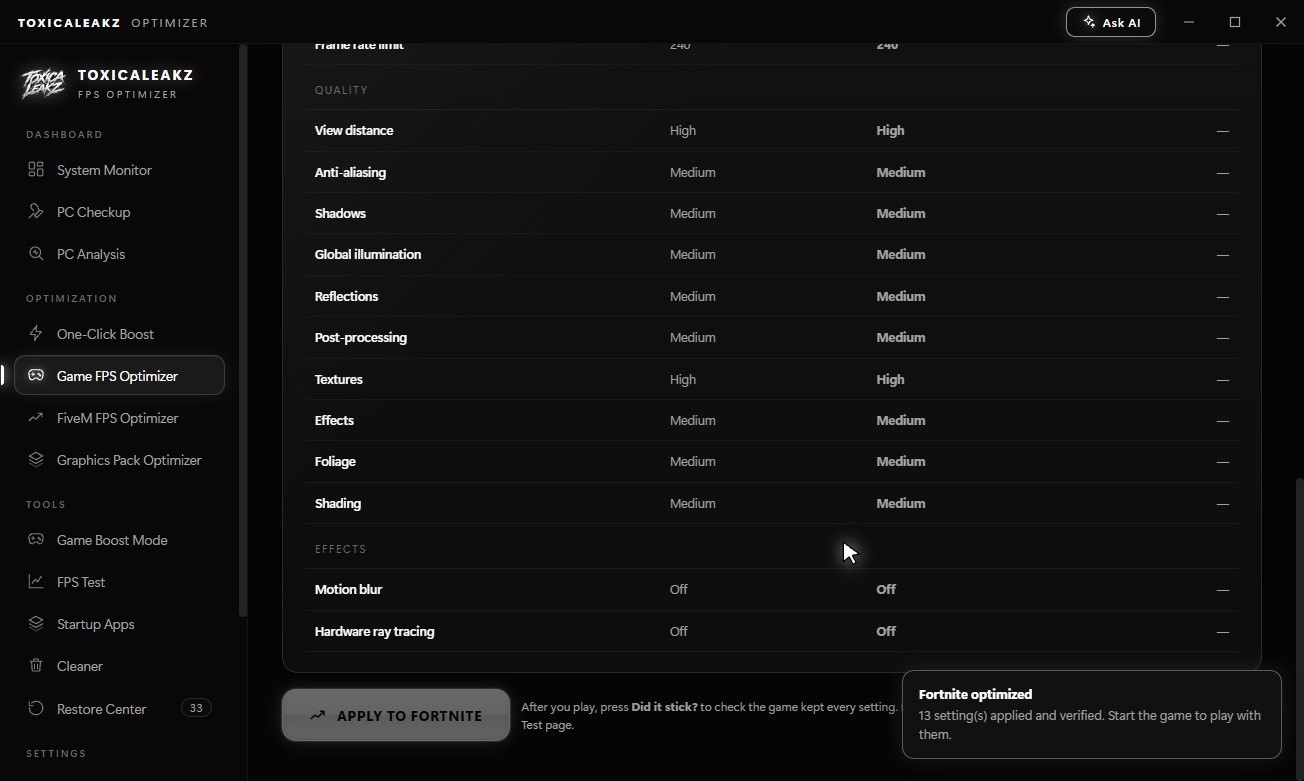
Pick the column that fits your PC. Balanced fits most players: the game stays clean and the settings that cost the most are turned down.
| Setting | Max FPS (weak PC) | Balanced (most PCs) | Quality (strong PC) |
|---|---|---|---|
| Rendering Mode | Performance * | DirectX 11 or 12 | DirectX 12 |
| VSync | Off | Off | Off |
| Frame Rate Limit | Unlimited | = your monitor Hz | = your monitor Hz |
| View Distance | Medium | Far | Epic |
| Shadows | Off | Medium | High |
| Global Illumination | Off | Medium | High |
| Reflections | Off | Medium | High |
| Anti-Aliasing | Off | Medium | High |
| Textures | by VRAM ** | by VRAM ** | by VRAM ** |
| Effects | Low | Medium | High |
| Post Processing | Low | Medium | High |
| Motion Blur | Off | Off | Off |
| Hardware Ray Tracing | Off | Off | Off |
* Performance - Lower Graphical Fidelity. With it, some of the other settings change or disappear.
** Textures: see below.
The settings that cost the most
- Shadows: one of the heaviest. Off gives the biggest jump; Medium is a good middle.
- Global Illumination and Reflections (Lumen on DirectX 12): very heavy on mid-range cards.
- Hardware Ray Tracing: only for strong RTX / RX cards, and even then it costs a lot.
- View Distance: how far the map is drawn. Medium is enough for most fights.
- Motion Blur: costs FPS and blurs fights. Most players turn it off.
Textures and your VRAM
Textures mostly use your graphics card's memory (VRAM), not FPS. Too high for your VRAM and you get stutters and blurry textures.
- 8 GB of VRAM or more: High or Epic.
- 4 to 8 GB: Medium.
- Under 4 GB: Low.
See your VRAM in Task Manager → Performance → GPU (Dedicated GPU memory).
Windows and PC tips
- Update your graphics driver from NVIDIA, AMD or Intel.
- Close background apps: browsers with many tabs, downloads and recording apps.
- Plug your laptop in and use a performance power mode.
- Turn on Game Mode in Windows Settings → Gaming.
Stay safe with anti-cheat. Fortnite uses Easy Anti-Cheat and BattlEye. Don't use injectors or tools that change game files. Everything in this guide is in Fortnite's own settings.
Do it in one click
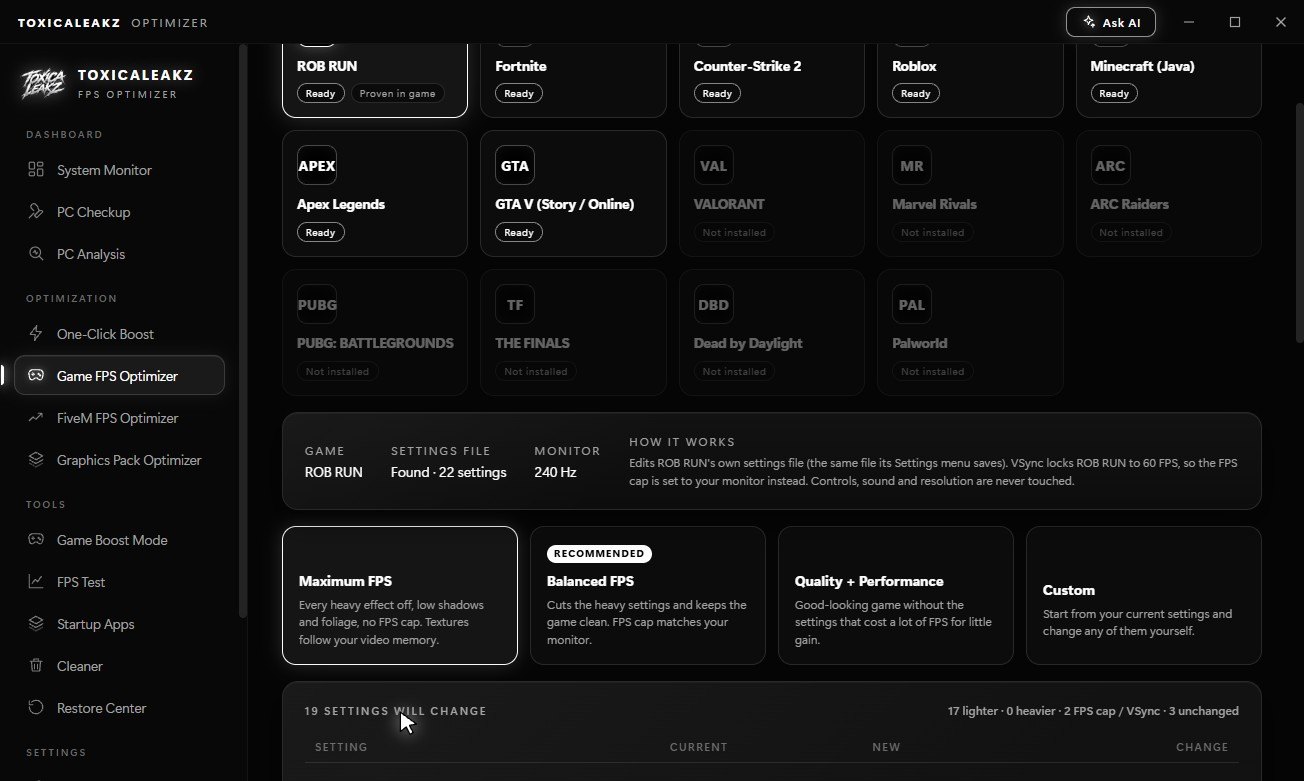
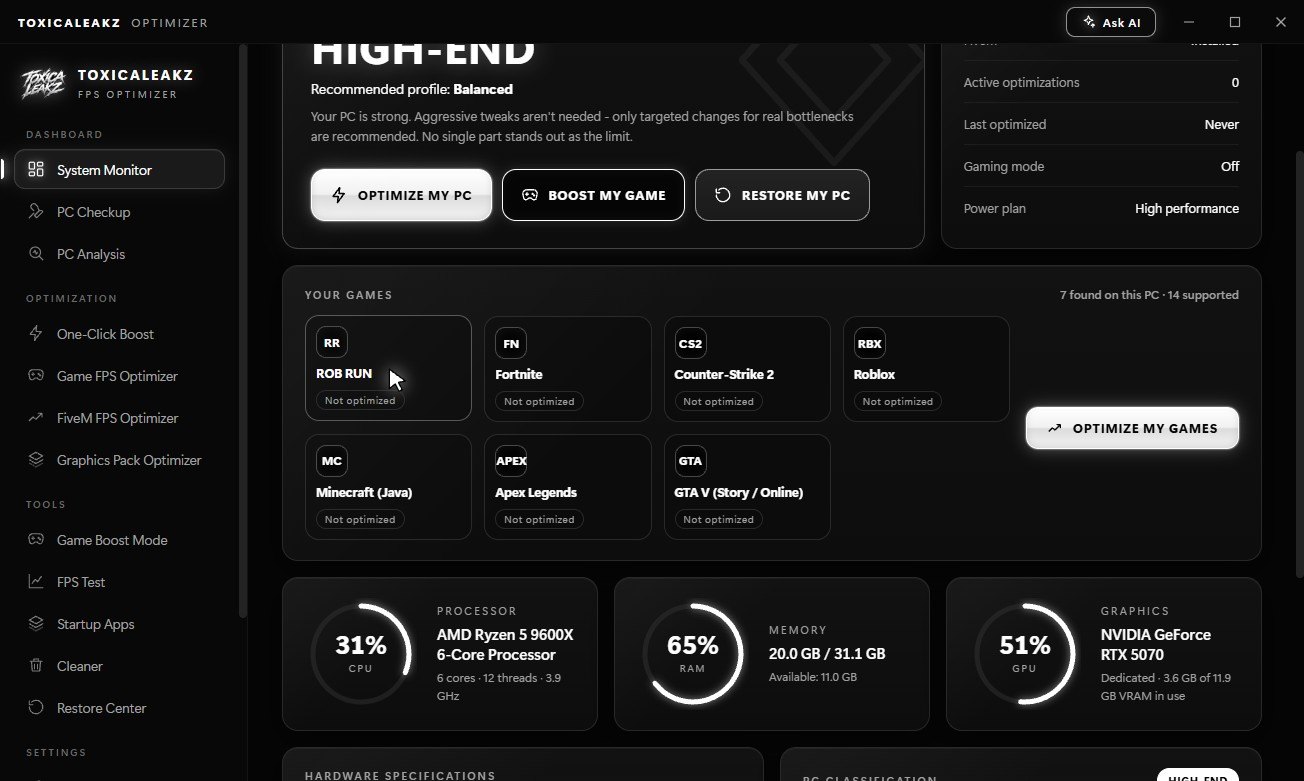
The ToxicaLeakz Optimizer (2.2) has a Game FPS Optimizer page that tunes Fortnite and 13 other games.
- Max FPS, Balanced, Quality or Custom, sized to your graphics card and its VRAM. VSync off, frame rate limit set to your monitor.
- It changes Fortnite's own settings file (
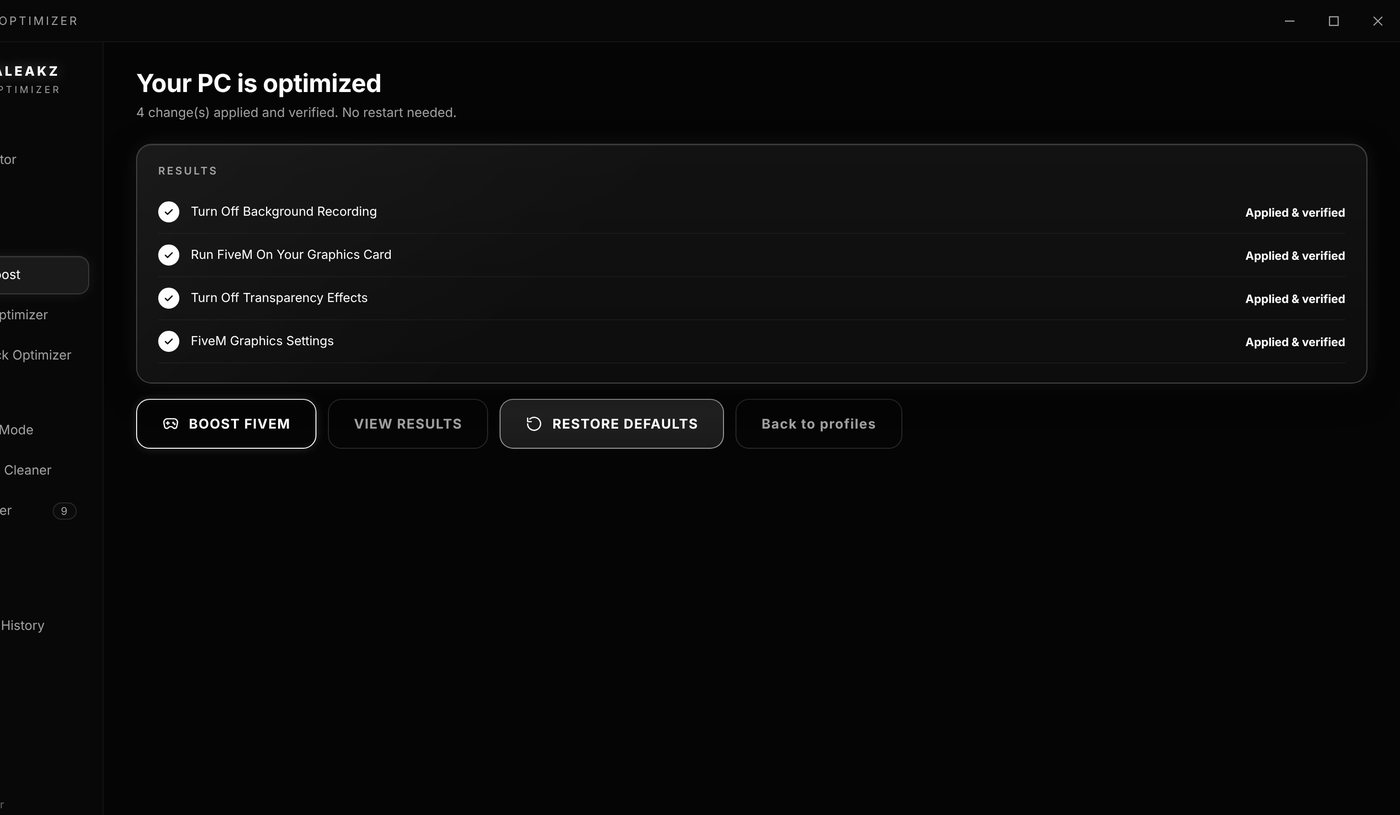
GameUserSettings.ini), the same file the Video menu saves. Never the game, its folder or its anti-cheat. Resolution, keybinds and sensitivity are never touched. Fortnite must be closed. - Did it stick? checks after you play that Fortnite kept every setting. Restore puts your old settings back exactly.
- Performance mode isn't switched by the Optimizer: that one you pick in Fortnite (steps above).
FAQ
What is the best Fortnite setting for FPS?
On a weak PC, Rendering Mode Performance. On DirectX 11 or 12: Shadows, Global Illumination and Reflections lower or off, Motion Blur off, VSync off and the frame rate limit at your monitor's refresh rate.
Should I turn VSync off in Fortnite?
Yes for most players. It adds input delay and can halve your FPS when the game dips. Use the Frame Rate Limit at your monitor's refresh rate instead.
Does Performance mode make Fortnite look bad?
It looks simpler: fewer shadows, simpler lighting and effects. On a low-end PC the FPS gain is usually worth it. On a mid-range or better PC, DirectX 11 or 12 with lighter settings looks better.
Can I get banned for changing Fortnite settings?
Not for using the game's own settings. Stay away from injectors and tools that change game files. The ToxicaLeakz Optimizer only edits the settings file Fortnite's Video menu saves.